
5.9
Release Date: June 5, 2026
We have implemented several enhancements to the Processing engine to improve how the failed documents are categorized, reported, and resolved by users.
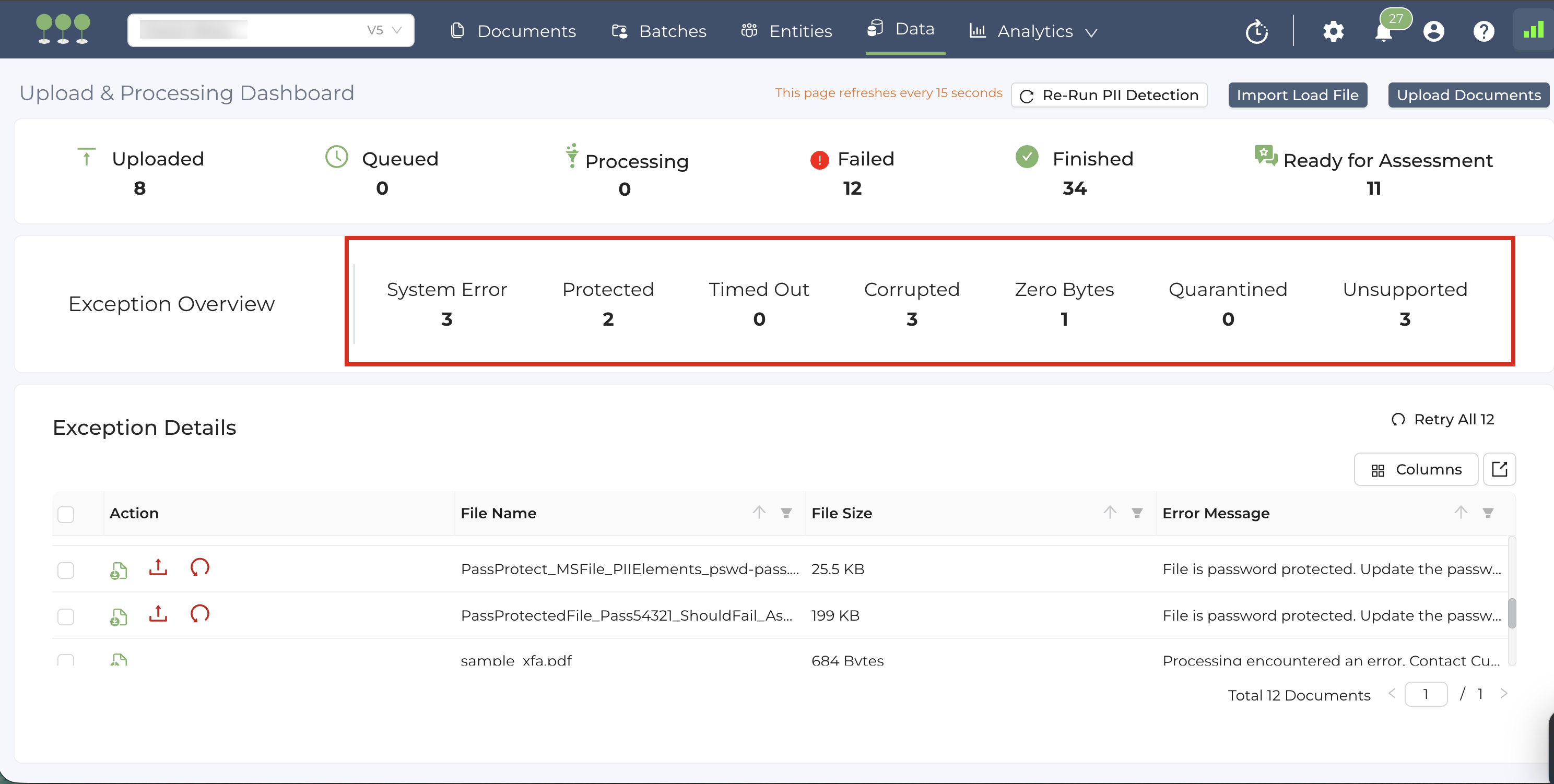
- Actionable Error Messages: After analyzing historical Failed Processing, we’ve standardized our error logs. Error Messages are now clear, concise, and paired with troubleshooting recommendations to help users resolve issues independently.
- Standardize Error Type: All Processing errors are now categorized into seven specific Exception Types:
- System Error: Error caused by Canopy’s internal engine.
- Protected: Password-protected or encrypted files.
- Timed Out: Processing timed out.
- Corrupted: Damaged or unreadable file structures.
- Zero Byte: Files containing zero bytes.
- Quarantined: Virus-infected files or symlinks.
- Unsupported: File formats not supported by Canopy.
For detailed information, refer to the Processing documentation.
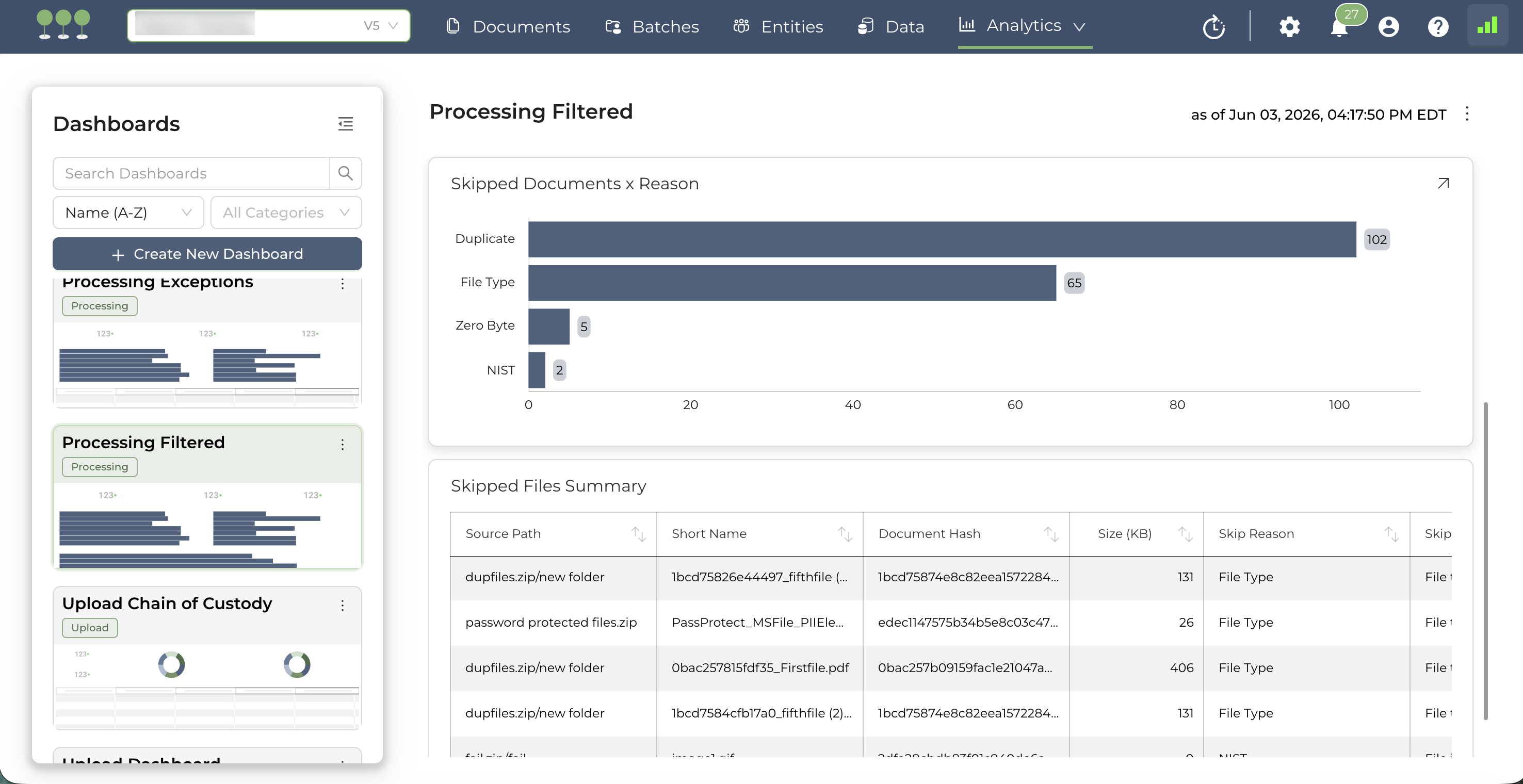
We’ve now introduced granular tracking and reporting for documents that are skipped during Processing. Users can now view exact skip reasons and counts directly within the Analytics Reports dashboard.
Skipped documents are categorized under two main reasons:
- Processing Template Setting (user-configure criteria):
- Custom Hash: The file is on the user’s specified hash list.
- Date Range: The file falls within the user’s excluded date range.
- De-duplicated: The file is a duplicate.
- De-NIST: The file is identified on the NIST list.
- File Type: The document’s file type is on the user’s specified skip list.
- Minimum Dimension: The image dimensions are below the user-set minimum threshold.
- Minimum Size: The document’s file size is below the user-set minimum threshold.
- Senders Domains: The file matches the excluded senders’ domains.
- Zero Byte: The file is 0 bytes.
- Zero Text: The file contains no extracted text.
- System Exclusion: The document belongs to a specific file type that is automatically excluded by Canopy. For the full list of skipped file types, see File Type .
We’ve upgraded our processing engine to resolve issues where certain file extraction failures, particularly within the .docx, .pptx, and .csv formats, returned invalid error messages. These failed scenarios are now correctly mapped to our standardized error messages and reasons, providing users with actionable insights for troubleshooting.
We’ve made several enhancements to our authentication security.
To prevent malicious actors from identifying valid user accounts in Canopy, the login interface now returns a generic error message: Invalid username or password, regardless of whether the inputted email address exists in our system.
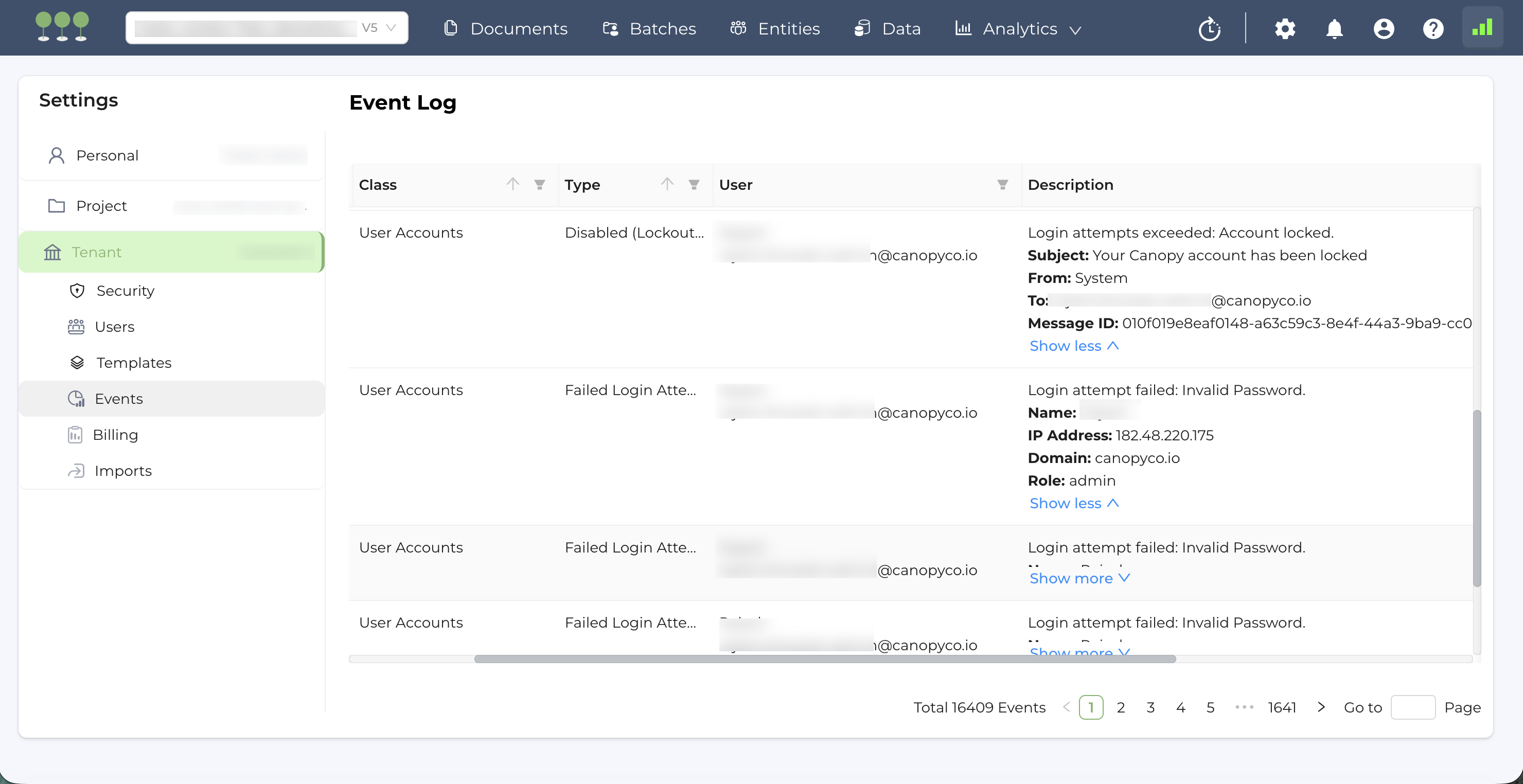
While detailed reasons for login failure are not displayed in the login interface, Canopy preserves and provides Events logs for failed login attempts to administrators.
- If a login attempt fails for an existing user account, the system records the event in the user’s Tenant Events log, including the specific failure reason.
- If a login attempt fails for an unknown email or domain, the system records the event in the Canopy Tenant Events log for the relevant region.
If an authenticated login attempt fails because an account has been disabled, Canopy automatically sends a secure notification email to the user. This email includes the account status reason and troubleshooting recommendations. To maintain visibility, the system also records the notification email event in the Tenant Events log.
| Class | Type | Description |
|---|---|---|
| User Accounts | Successful Login | Name: {{user}} IP Address: {{address}} Domain: {{domain}} Role:{{role}} |
| User Accounts | Failed Login Attempt | Login attempt failed. {{reason}} Name: {{user}} IP Address: {{address}} Domain: {{domain}} Role:{{role}} |
| User Accounts | Disabled (Lockout) Email | Login attempts exceeded: Account locked. Subject: Your Canopy account has been locked From: {{from_email}} To: {{to_email}} Message ID: {{MessageId}} |
| User Accounts | Disabled (Inactive) Email | Login attempt denied: Account disabled due to inactivity. Subject: Your Canopy account has been disabled due to inactivity From: {{from_email}} To: {{to_email}} Message ID: {{MessageId}} |
| User Accounts | Disabled (Suspended) Email | Login attempt denied: Account suspended by admin. Subject: Your Canopy account has been disabled From:{{from_email}} To: {{to_email}} Message ID: {{MessageId}} |
| User Accounts | IP Restrictions Email | Login attempt failed: IP Restriction. Subject: Your Canopy account login failed From:{{from_email}} To: {{to_email}} Message ID: {{MessageId}} |
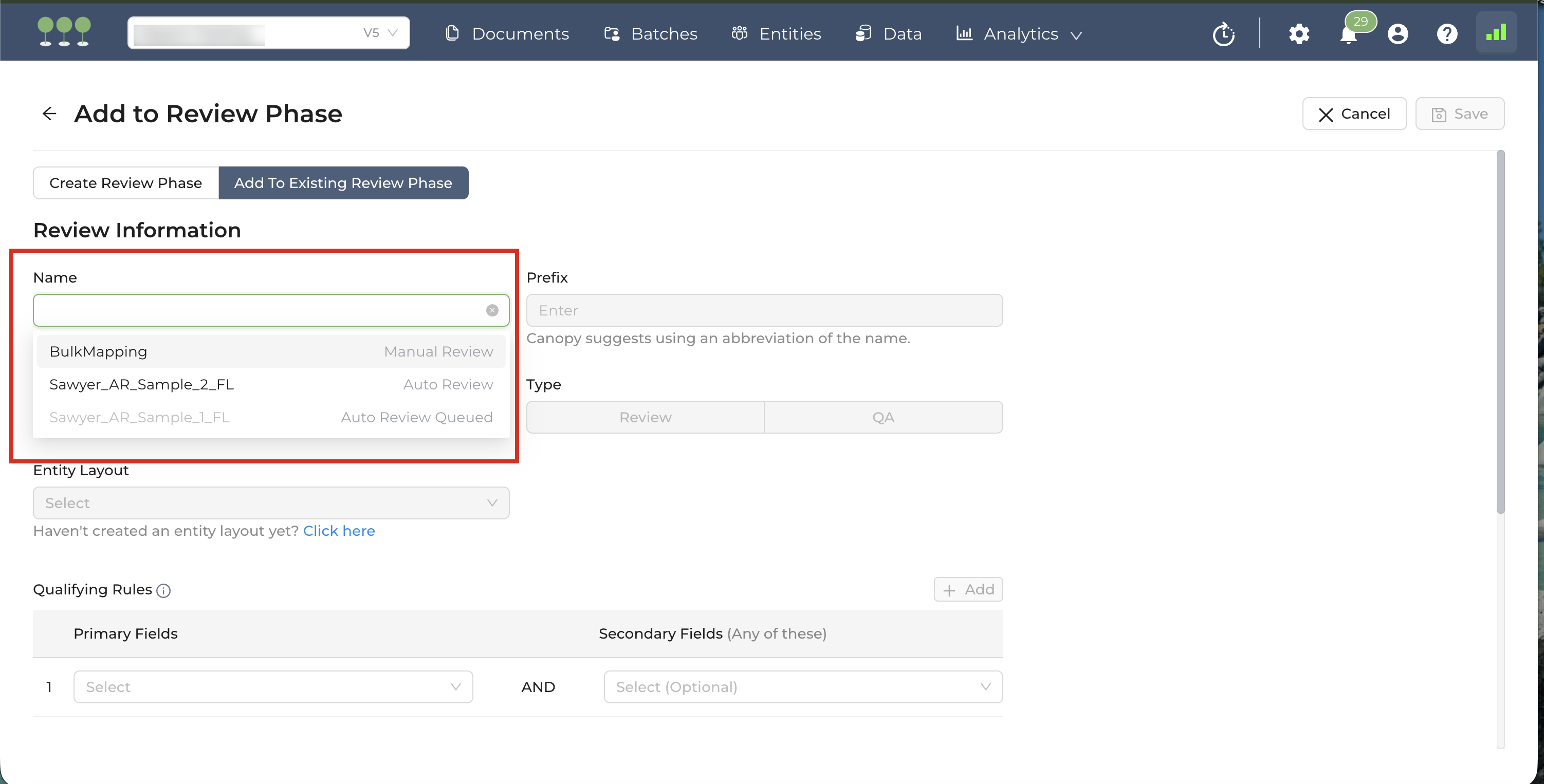
The Add to Existing Review Phase workflow now provides real-time visibility into the status of the Auto Review Phase.
While users can add documents to a Manual Review Phase at any time, an Auto Review Phase becomes locked once its execution begins.
To eliminate confusion, the Add to Existing Review Phase Name interface now displays the current Auto Review Status alongside each Review Phase Name. This enhancement enables users to quickly identify which phases are available for document additions and which Auto Review Phases are locked.
We’ve completed a routine infrastructure upgrade to the Kubernetes Control Plane. This is a backend-only update, and it will not affect your workflow.
We’ve fixed a bug that occasionally caused tabular data from .csv files to misalign across columns when displayed in the document view. CSV data now accurately reflects the original file’s structure with correct formatting and zero column shifting.